When I ask a room of in-house lawyers which AI tool they have, the answer is nearly always the same. Everyone here is in Copilot. It came with the Microsoft licence, IT switched it on, and nobody chose it.
Then come two questions. Is it good enough for legal work? And is it safe? My answer to both is the same: that depends less on Copilot than on what you set up around it. There are six things.
1. Know which Copilot you are in
Copilot is a brand, not one product. There is a version for consumers and a version for work, and they look alike. Only the work version, signed in with your work account, knows your organisation and falls under your organisation’s contract.
So the first check is dull and necessary: which one is open on your screen? If you searched for the name in a browser, it is probably the wrong one.
2. Know what it is
Copilot is not a model. It is an appliance that runs on models made by others, the way a coffee machine runs on power from the wall. What Microsoft adds is everything around the model: your Word, your Outlook, your Teams.
That is its real advantage, and the answer to “why not just give us ChatGPT?” Copilot already sits where your mail, your calendar and your documents are. With another tool you have to build those connections yourself.
3. It sees what you can see
This is the sentence to remember. Copilot can reach what your account can reach. That is reassuring: it does not open doors you could not open. It is also a warning, because in most organisations far more doors are open than anyone thinks.
Document libraries are often open to the whole organisation, simply because managing permissions well takes time and knowledge. Nobody noticed, because nobody went looking. Copilot goes looking.
So before you rely on it:
- Check what you yourself can already reach: shared drives, team sites, old project folders. That is the room you are letting it loose in.
- Put matter files and anything privileged where only the matter team can open it.
- Test it. Ask Copilot for a document you should not be able to see. If it answers, you have found a permissions problem, not an AI problem.
Sensitivity labels can help here, if they are set correctly. Ask IT whether they are, and do not assume it.
4. Follow the document
The question I teach lawyers to ask IT is short: where does my contract go? Where is it read, where is the text sent, when is it gone? And then: can this stay inside the EU, without our data being used for training?
For the core of Copilot your organisation has usually answered that already, in its contract with Microsoft. Do not stretch that answer further than it goes. Some parts of Copilot run on models from another supplier, and an administrator has to switch those on. That is an extra party, and an extra question. “We already have Copilot” is true for the basis, not automatically for every agent in it.
For law firms the same five checks apply as for any tool: see May a lawyer use ChatGPT?
5. Give it small pieces, and count
Copilot is at its best on something you paste in and can check yourself: two paragraphs to tighten, an email to answer, a clause to compare with your standard.
It goes wrong on length. Put a contract of a hundred pages and a playbook of thirty into one question, and the answer looks complete while the tool did not take in the whole document. The middle gets thin, the answers get general. Nothing tells you what was skipped.
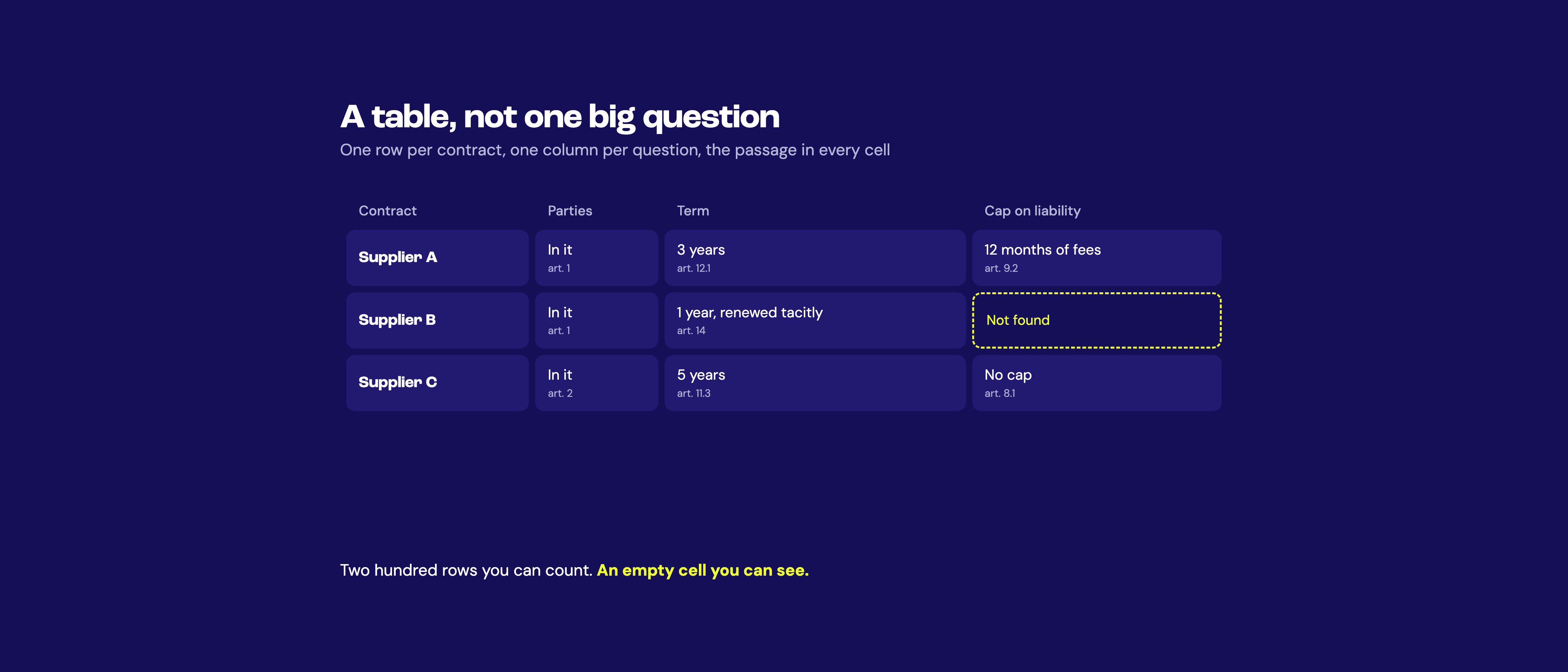
My remedy is a table, not one big question. One row per contract. One column per question: who are the parties, what is the term, is there a cap on liability. In every cell the answer and the passage it comes from. Work in batches.
Two hundred rows you can count. An empty cell you can see. A summary of two hundred contracts shows you neither.
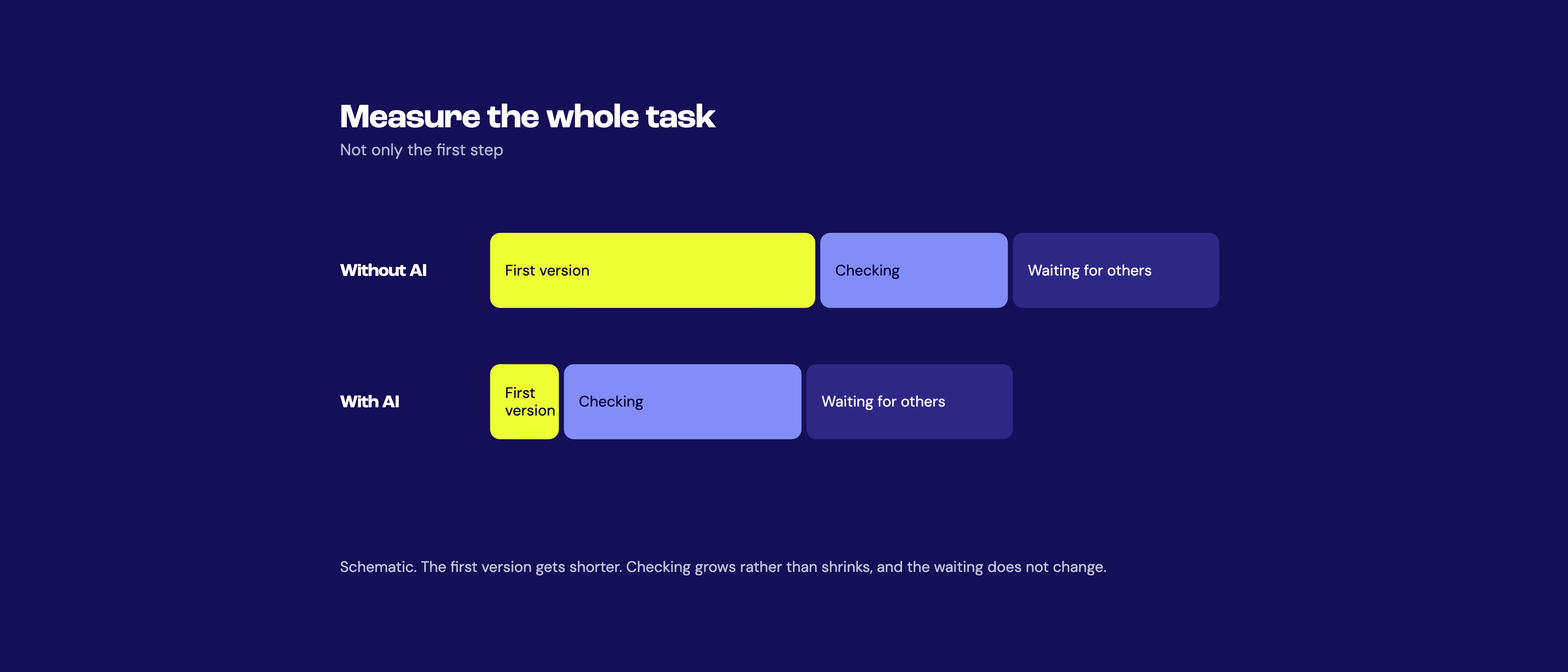
The same goes for edits. Before you let it change a document, ask one thing: can I see exactly what changed? If a whole paragraph comes back rewritten and you cannot see which three words moved, you are not reviewing, you are re-reading.
6. Turn what works into an agent, narrowly
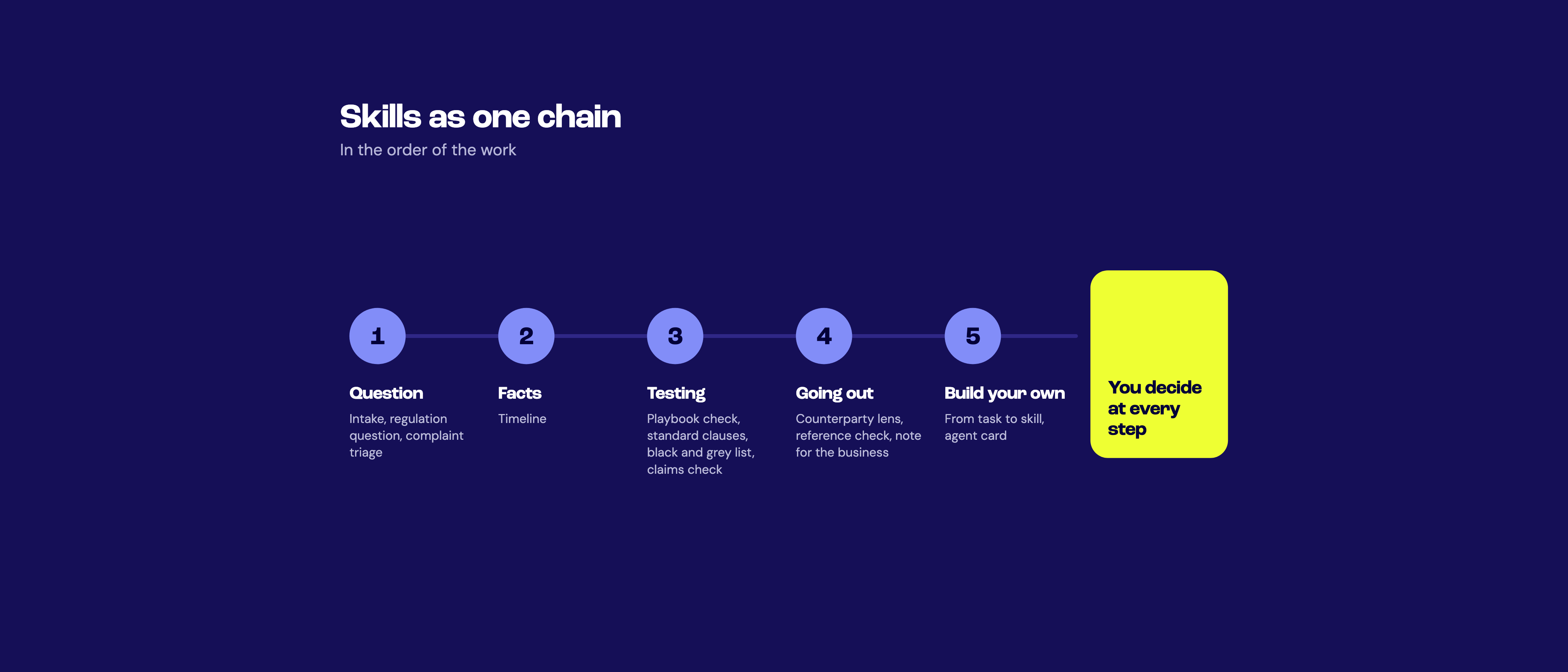
When the table works, the next step is small. In five steps, and three of them are yours.
- You choose what matters: the columns.
- You test on ten contracts you know, the way you would test a new colleague.
- The model fills the table for all of them.
- You judge, in an afternoon with the senior lawyers. They do not search any more. They decide.
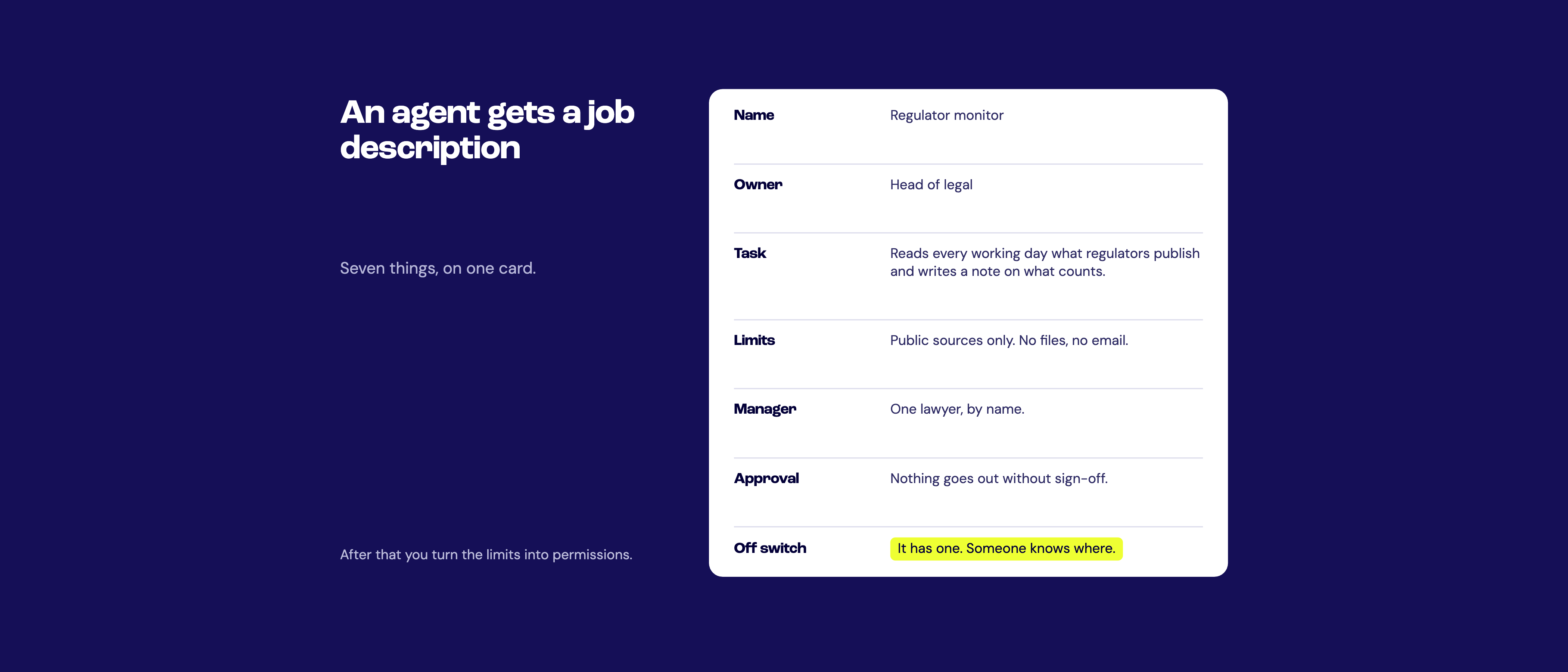
- What you decided becomes your playbook, and the playbook becomes an agent in Copilot: a name, the instructions, the file.
That agent does one thing. From teams that got this working I hear the same: success comes from one narrow task whose result you can check. An agent that sorts incoming requests. An agent that answers the ten questions sales always asks, or sends them to a lawyer.
Agree two things before people start building. Who may share an agent with whom. And that an agent works with the rights of the person using it, never with an administrator’s account. More on that in What is a legal AI agent?
So is it enough?
For a lot of legal work, yes. Review and drafting on your own documents, with your own positions, where you can check the result: start there, with what you already have. The coffee machine is already in your kitchen. Look at which recipes it has before you buy a new one.
It stops in two places. Research in legislation and case law needs sources that Copilot does not have by itself; that is where a legal tool earns its price, see Harvey or Legora? And some work needs more than a chat window: an answer that comes back in the place where the work happens. For one legal department we built a Power App in their own Microsoft environment that answers the recurring questions from sales. No new supplier, no new system, on the contract they already had.
One caveat: Copilot changes every month. I have left out licence names, model names and release dates on purpose, because they would be wrong by the time you read this. What does not change is the order: permissions first, then small pieces you can count, then one narrow agent.